Claude and Figma
Connecting them takes about a minute. Below is every screen you will see, and then the six things that actually go wrong.
Already stuck? Jump to the FAQThe setup
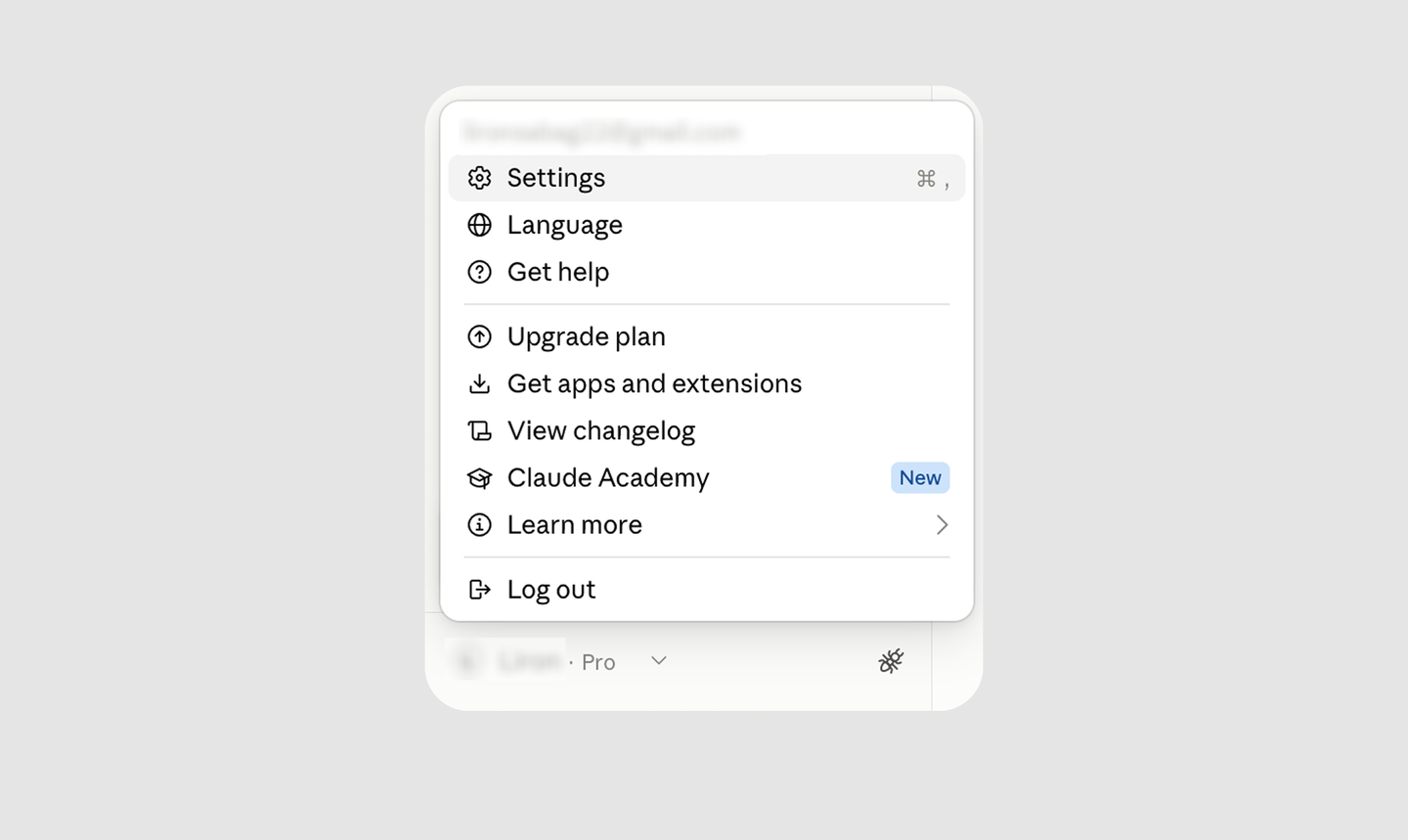
01 Open Settings
In the Claude desktop app, not the browser. The connector list only exists in the app.
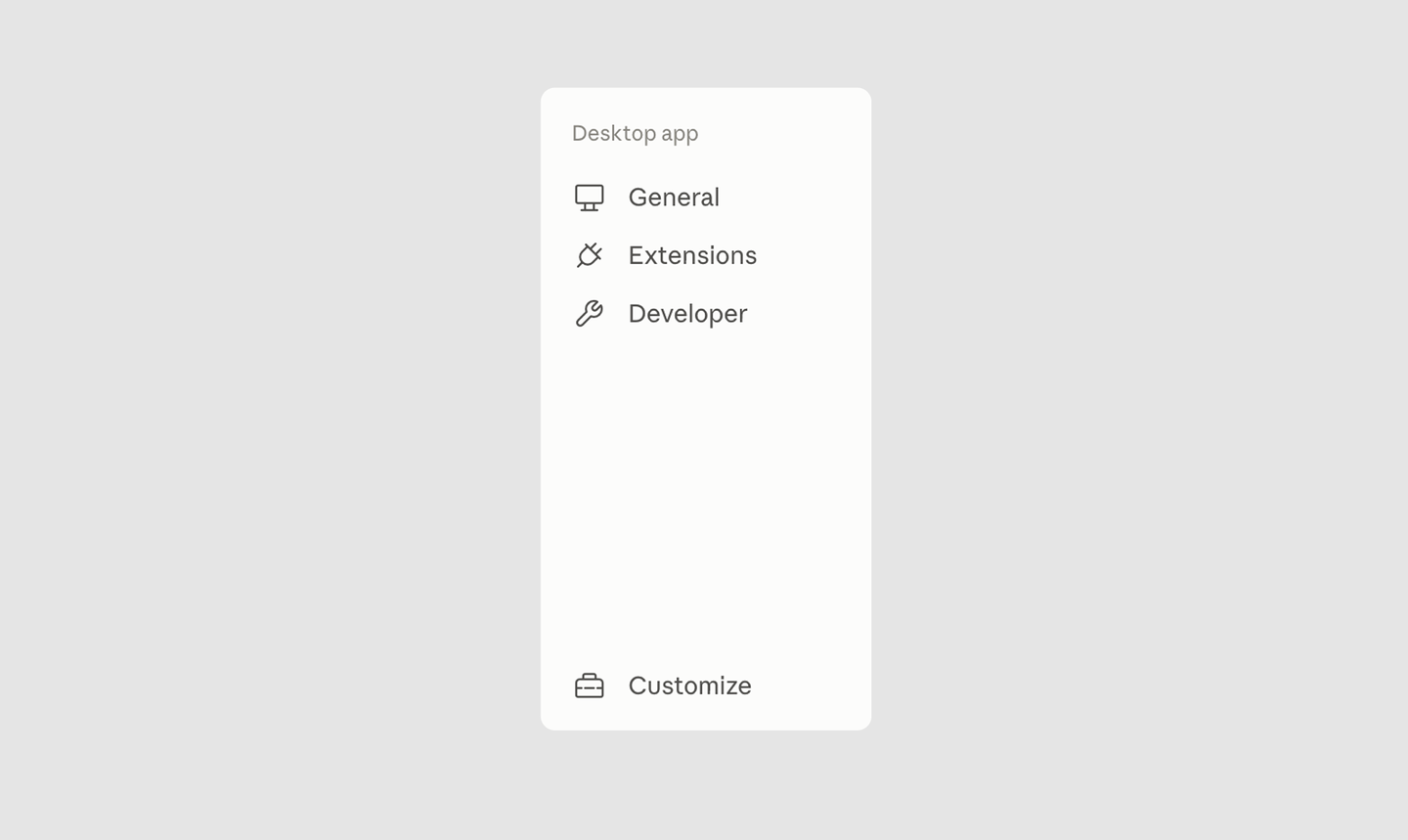
02 Choose Customize
It is at the bottom of the settings sidebar, under General, Extensions and Developer. Then select Connectors.
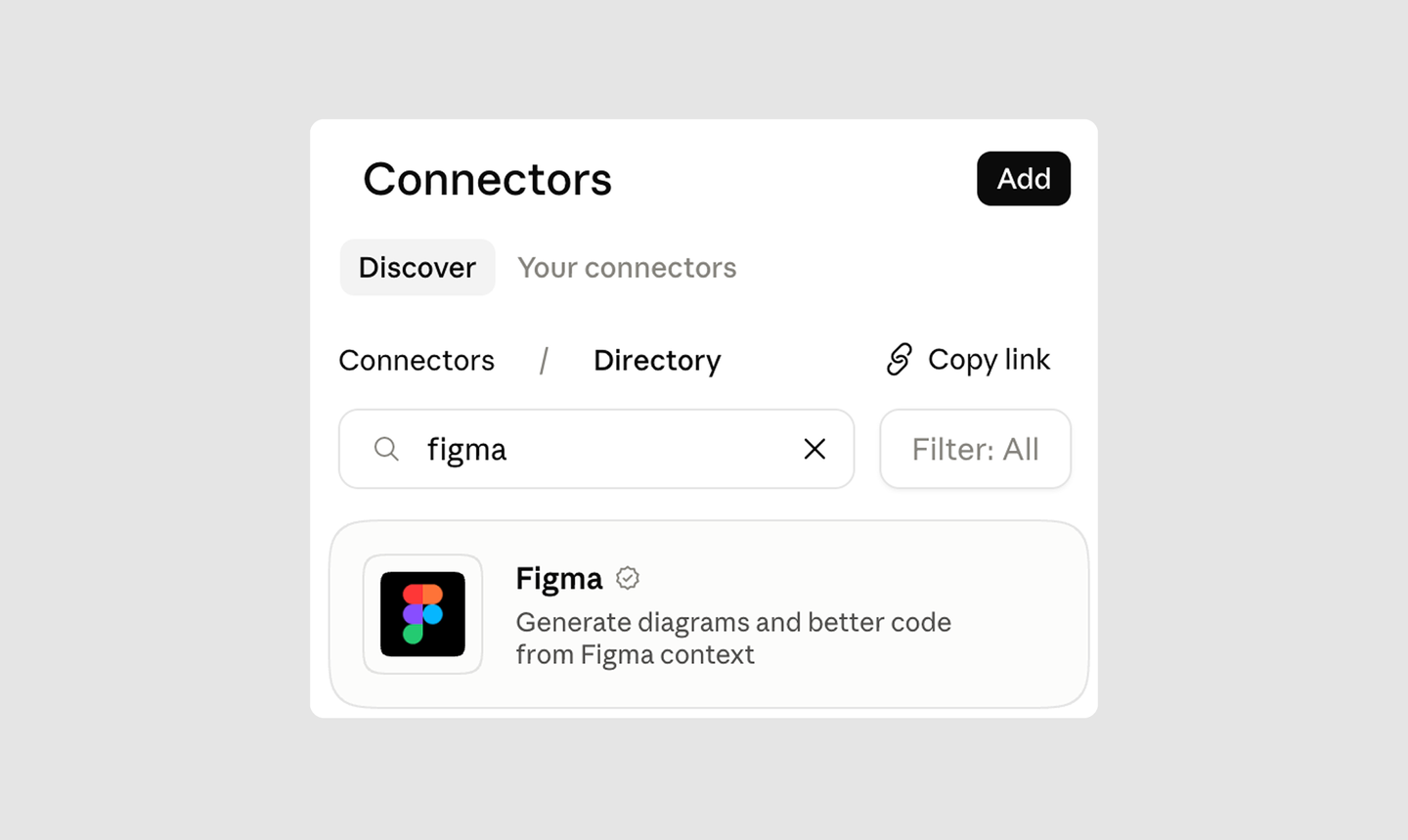
03 Find Figma
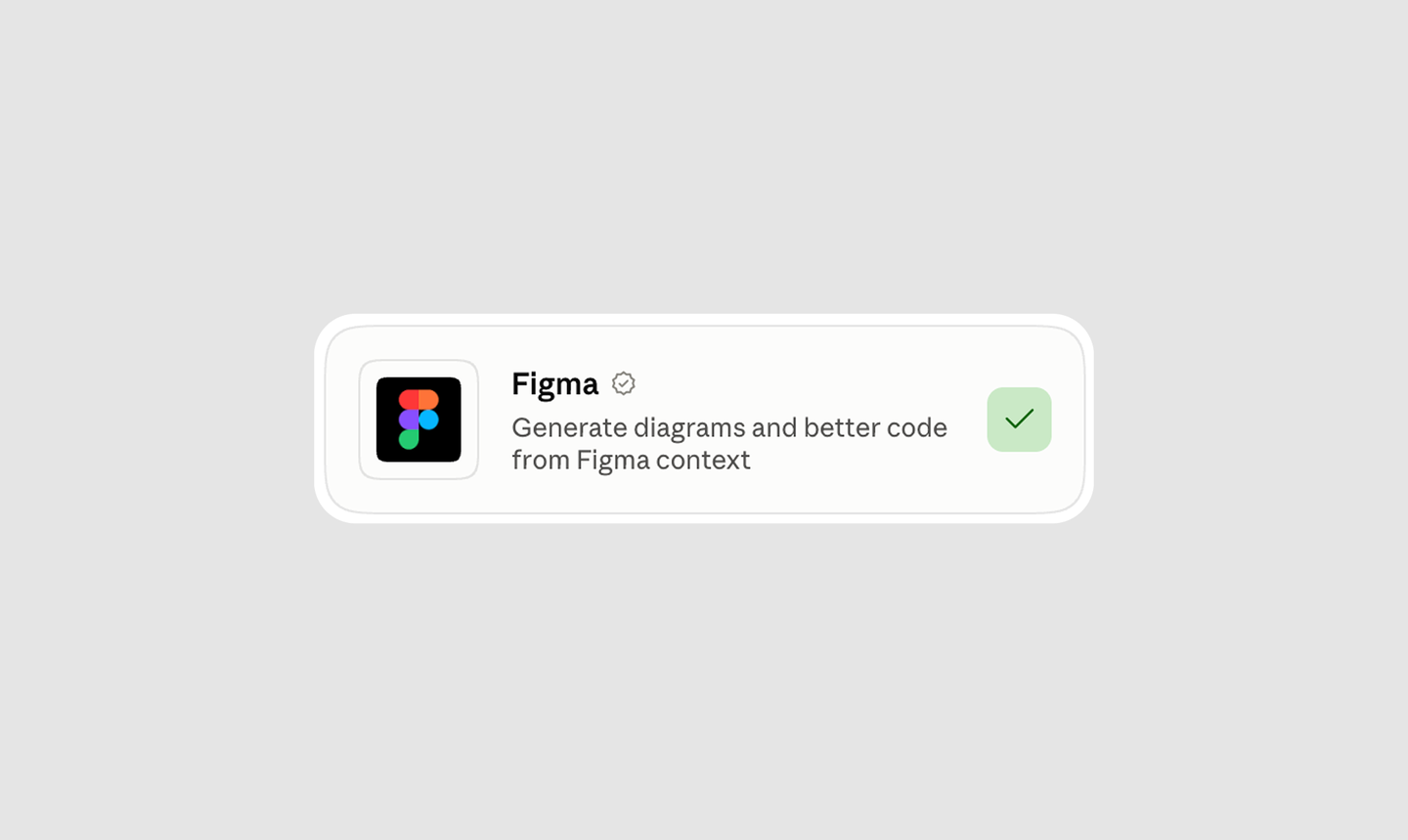
Click Browse connectors and search for Figma. You may get more than one result. Take the one described as Generate diagrams and better code from Figma context, the card in the picture above. Both results are real, and that is the one this guide is written for.
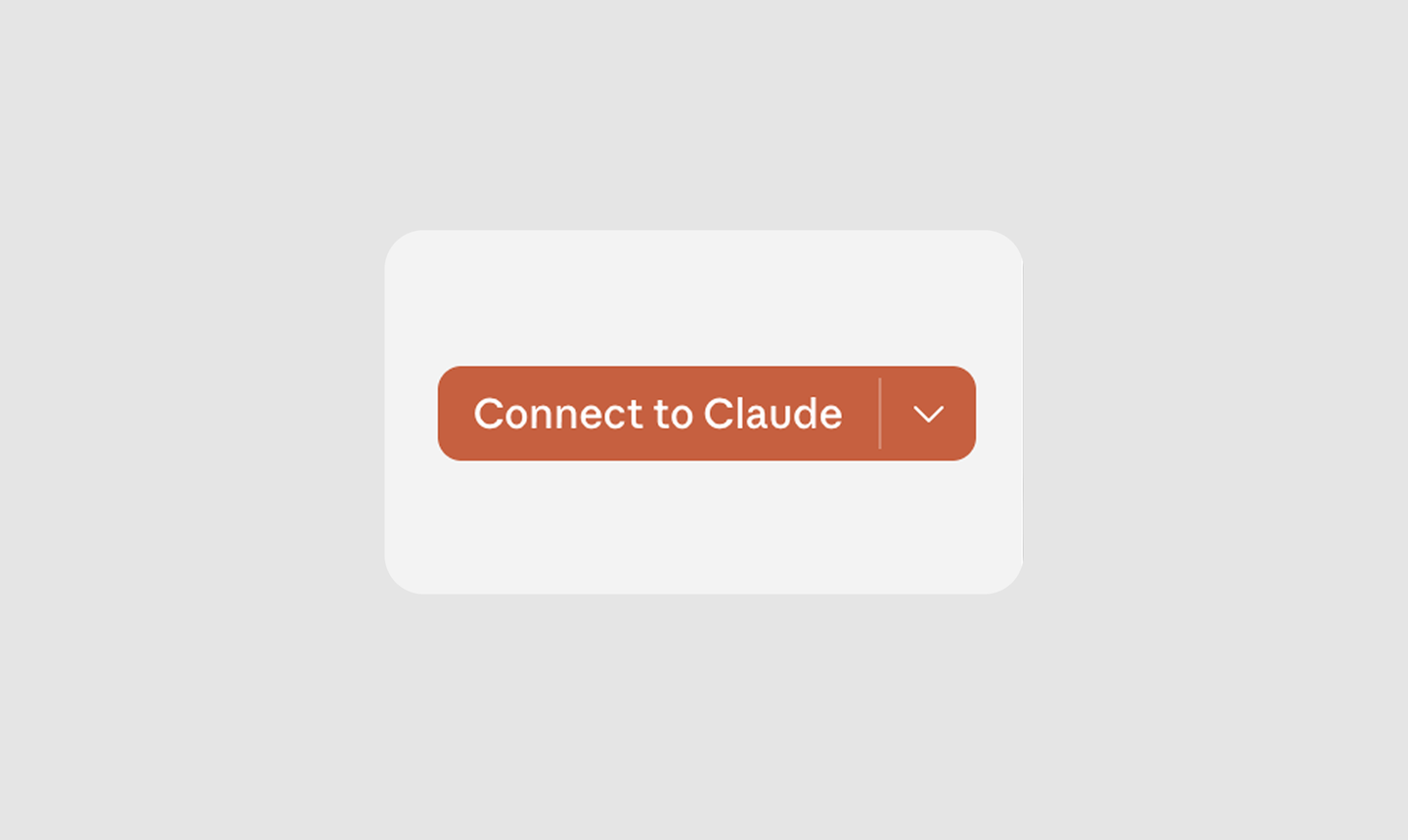
04 Click Connect
Your browser opens. Sign in to Figma and click Allow access. Then come back to Claude.
05 Check it worked
A green check appears on the Figma card. That is what a working connection looks like.
Now test it: in Figma, right-click a frame, choose Copy link to selection,
paste the link into Claude and ask it what it sees.
FAQ
The questions we actually get, roughly in the order people hit them.
Can I connect from inside Figma instead?
Yes. There is a second route that starts in Figma rather than in Claude, and some people prefer it because everything happens next to the file they are already looking at.
Open the file in the Figma desktop app and switch it to Dev Mode, the toggle at the
top of the toolbar. In the Dev Mode sidebar there is an MCP server section. Turn the server
on. Figma gives you a local address, something that looks like
http://127.0.0.1:3845. Copy it, and add it in Claude as an MCP server using that
address.
It is not the same thing as the connector. The connector runs through your Figma account and keeps working on its own. This one is a small server running on your own machine, so the Figma desktop app has to be open for it to answer. Dev Mode is also not on every Figma plan.
If you only want Claude to read and write your designs, the connector route above is simpler and it is the one the rest of this page assumes.
Which Figma connector do I pick?
Searching for Figma can return more than one result, both with the Figma logo, both genuine. Take the one described as Generate diagrams and better code from Figma context. Both of them work, and that is the one everything here is written for. If you connected the other and something behaves differently from these steps, disconnect it and switch.
Why do my settings look nothing like this?
You are almost certainly in the browser. The connector list only exists in the Claude desktop app.
I pressed connect and nothing happened.
Connecting opens your browser so you can sign in to Figma and allow access. If that window opened behind something, or a pop-up blocker ate it, the connection sits there unfinished and looks broken.
Close it, press connect again, and watch for the browser tab.
It says it is connected, but nothing happens.
Almost always the same cause: you gave it a link to the whole file, so it has no idea which part you mean.
In Figma, right-click the frame itself and choose Copy link to selection.
Paste that. The difference is night and day.
It says it cannot see my file.
It opens files through your account, so it can only reach what you can reach. A file in a team you only have view access to, or one that was never shared with you, will not open.
Why does the text come back in the wrong font?
This one is not a mistake you made, and it is worth understanding.
When Claude writes text into your file, it can only use fonts Figma serves it: Google Fonts, plus anything uploaded to your organisation. A font installed on your own machine is visible to you in the Figma app, and invisible to the connection. So the layout comes back right and the typeface comes back wrong.
Two things follow from that. Do your writing first and your font replacement last: if you fix the fonts and then ask Claude to edit that text, it either refuses or knocks the font back to a stand-in. And if your plan lets you upload fonts to your organisation, doing that once solves it permanently.
We hit this building the carousel that sent you here. The layout was perfect. Every word was in the wrong typeface.
Still stuck?
Send us a photo of the screen you are stuck on, on Instagram or by email, and we will tell you what we see. We have made every one of these mistakes ourselves.
And if you want the rest of it, we run a workshop for designers working with AI. Two hours, live, small group.
Regards,
Harold and Celeste
LAB2